10 NetSuite Saved Search Tips Every Finance Team Should Know
Need help with this in your NetSuite account?
Saved searches are the most underused power tool in NetSuite. Most teams use them for basic filtering and stop there, but a well-built saved search can replace a custom report, feed a dashboard, trigger a workflow, or catch data errors before they become a closing-day fire drill.
What is a NetSuite saved search?
A NetSuite saved search is a stored query that retrieves, filters, and optionally aggregates records from the NetSuite database in real time. When you run a saved search, NetSuite queries its database against the criteria you defined and returns matching records instantly, pulling the current state of the data, not a snapshot.
Unlike a custom report, a saved search returns individual records by default. You can aggregate those records using summary types (Sum, Count, Average) to produce report-like totals, but the underlying unit is still the record. This makes saved searches more flexible for operational use cases: you can view the raw transaction detail or switch to a summarized view from the same search.
Saved searches are accessible from the Reports menu (Reports > Saved Searches > All Saved Searches) and from most record lists, where NetSuite provides a default search that can be customized and saved. They are also used internally by NetSuite for workflow entry criteria, SuiteScript record queries, and portlet data sources.
A saved search has five main components:
- Record type: the NetSuite record the search runs against (Transaction, Customer, Item, Employee, etc.)
- Criteria: the filter conditions that determine which records are included in the results
- Results columns: the fields, formula columns, and joined fields that appear in the output
- Summary types: optional aggregation settings (Sum, Count, Group) applied to results columns
- Output options: how the search is delivered: as a list, a dashboard portlet, a scheduled email, or a workflow filter
Quick answer
NetSuite saved searches can do more than filter records. The capabilities most teams have not fully used are: Summary type aggregation for totals and counts without building a custom report; Use Expressions columns for joining to related records that the standard columns do not surface; formula-based filters for conditions the standard criteria cannot express; Relative Date filters to avoid hardcoded date ranges that need updating each period; scheduled email delivery with a setting that suppresses the email when no results are found; dashboard portlet placement for live-refreshing visibility on login; and formula fields in the results for conditional formatting that highlights exceptions. A saved search that correctly combines criteria, summary, formula columns, and scheduled email delivery replaces several manual reporting steps that would otherwise run on the same schedule. Saved searches created in the NetSuite UI are also accessible programmatically via the N/search module in SuiteScript 2.x, which means a well-built search can serve both reporting and automation without maintaining separate filter logic in code.
How to create a saved search in NetSuite
Creating a saved search requires at minimum a role with View or higher access to the target record type. Administrator and Controller roles typically have broad access; restrict access to the search itself under the Audience subtab if needed.
Step 1: Open the saved search builder
Navigate to Reports > New Search. The "New Search" screen lists record types you can search against. Alternatively, open any record list (Transactions > Sales > Sales Orders, for example), run a search using the existing filter, then click "Save" from the list view to start a saved version of that filter.
Step 2: Select your record type
Choose the record type the search should run against. The record type determines what fields and joined fields are available in the criteria and results tabs. Common choices:
- Transaction (covers sales orders, invoices, bills, journal entries)
- Customer
- Item
- Employee
- Vendor
- Project
Note: Transaction is the most flexible type but also the most complex. Narrow the transaction type in the Criteria tab (Type = Invoice, Sales Order, etc.) rather than running an unrestricted Transaction search.
Step 3: Set your criteria
On the Criteria tab, add filter conditions that determine which records appear in the results. Each criterion is a field, an operator (is, is not, between, any of, etc.), and a value.
Common patterns:
- Use "Type" = specific transaction type to narrow a Transaction search
- Use "Date" with a Relative Date value ("This Month," "Last Quarter") rather than hardcoded dates
- Use the "Any of" operator when filtering by multiple values (multiple subsidiaries, multiple statuses)
- Use "Main Line" = True on Transaction searches to avoid one result row per line item
Step 4: Configure your results columns
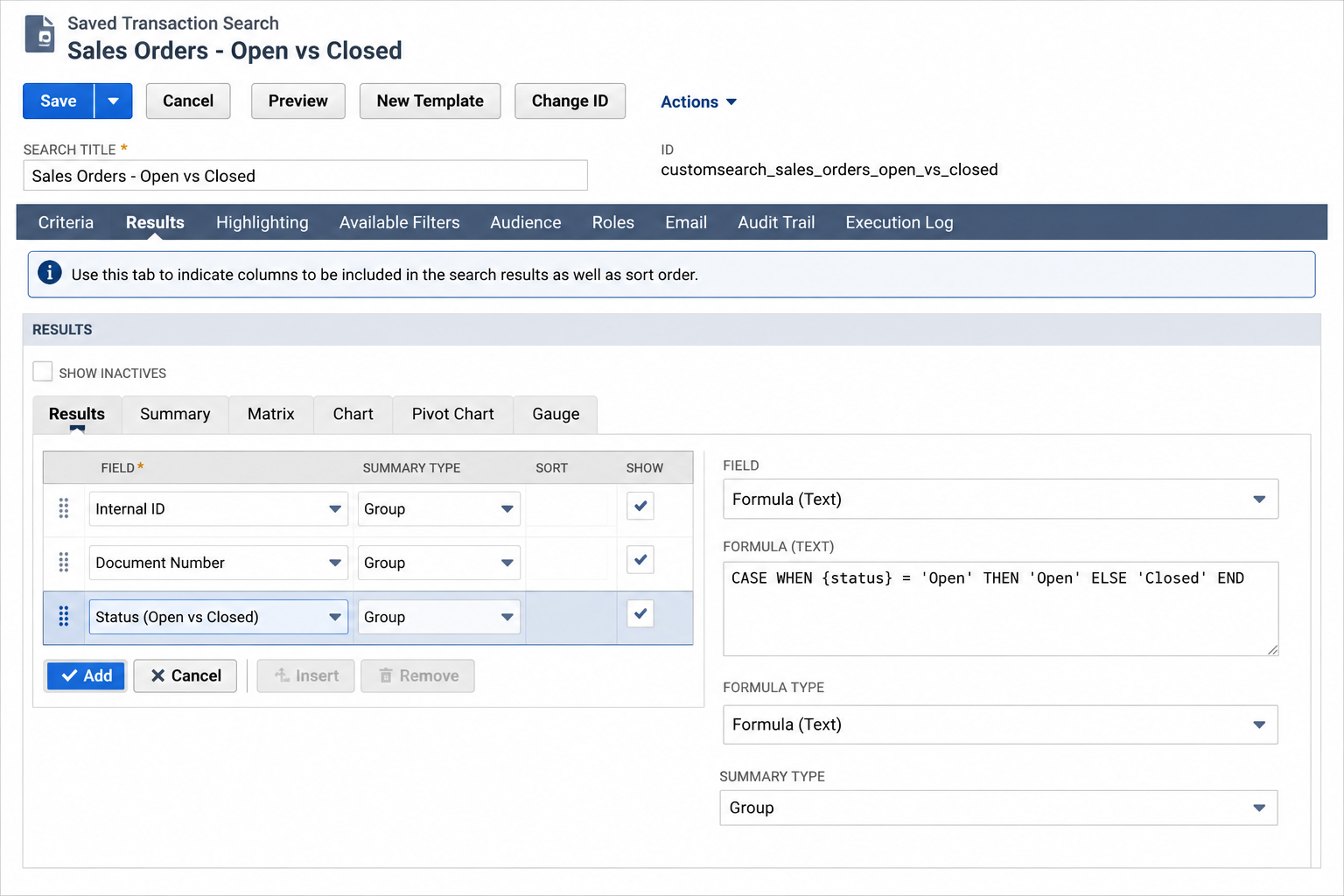
On the Results tab, add the fields you want to see in the output. Each column can be given a label, a summary type (for aggregation), and a custom formula. Add joined fields by using the field dropdown to navigate to related records (e.g., on a Transaction search, you can join to Customer to pull the customer's primary currency or billing address).
Step 5: Preview and save
Click Preview to run the search against live data. Review the first few rows to verify the criteria are filtering as expected and the columns are showing the correct values. Then click Save to store the search. Give it a name that includes the owner (department or role) and purpose, such as "AR: Open Invoices Over 60 Days" rather than "Invoice Search." This makes the search findable when others look for it later.
The saved search is now accessible from Reports > Saved Searches > All Saved Searches, and can be added to any dashboard as a portlet or scheduled to email its results automatically from the Email subtab.
Ten saved search techniques
Here are ten techniques we use constantly when cleaning up or building out a client's saved searches.
1. Use summary types instead of exporting to Excel
If you're exporting search results to Excel just to sum a column or count records, stop. NetSuite's summary types (Sum, Count, Average, Group) do this natively in the search results, and the totals update live as the underlying data changes. This alone eliminates a huge share of "let me pull this into a spreadsheet" busywork.
2. Group by a field to get instant subtotals
Set a column's summary type to "Group" and every other summarized column will subtotal within that group. For example, group by Sales Rep to get subtotaled revenue per rep in a single search, with no formulas.
3. Use formula fields before asking for a custom field
Before requesting a new custom field, check whether a formula (numeric), formula (text), or formula (date) column in the saved search can compute what you need on the fly. Formula fields support most SQL-like functions (CASE WHEN, NVL, TO_CHAR, date math) and require no schema change, no script deployment, and no governance overhead.
4. Build "exception" searches, not just "list" searches
The highest-value saved searches usually aren't "show me all invoices." They're "show me invoices with no PO number" or "show me sales orders approved but not fulfilled after 5 days." Exception searches built around a Criteria filter that should normally return zero results are one of the easiest ways to catch process breakdowns before they compound.
5. Use "Available Filters" to make one search do the work of ten
Instead of building near-identical searches for each department or date range, add the relevant fields under Available Filters on the criteria tab. This turns a single saved search into a flexible report that any user can re-slice from the results screen, without editing the search definition.
6. Schedule searches to email themselves
Under the Email subtab, you can schedule a saved search to run on a recurring basis and email the results (as an inline table or CSV) to a distribution list. This is a simple, zero-script way to get a Monday morning exceptions report into the right inboxes automatically.
7. Know the difference between a search filter and a results filter
Criteria on the Criteria tab filter which records are evaluated. Criteria added as an "Available Filter" still narrows the result set, but lets the end user choose the value at run time. Mixing these up is the most common reason a saved search "isn't working" when it's actually just filtering at the wrong stage.
8. Use saved searches as the data source for dashboards
A saved search with a summary type and a "Group" column can be dropped directly into a dashboard as a list, trend graph, or KPI scorecard, no SuiteAnalytics workbook required. This is usually the fastest path to a usable executive dashboard.
9. Watch your join depth
Searches that join across many related record types (e.g., transaction to item to vendor to vendor bill) can get slow as data volume grows. If a search is timing out or taking minutes to run, the join structure, not the row count, is usually the bottleneck. Simplifying joins or moving logic to a formula field on a single record type often fixes it.
10. Audit your saved searches at least twice a year
Saved searches accumulate. Old searches built for a process that no longer exists quietly keep running, eating into governance and confusing new hires who don't know which one is "the real one." A short quarterly audit, archiving unused searches, renaming ambiguous ones, and documenting what each scheduled search feeds, pays for itself the first time someone almost reports off a stale search.
NetSuite saved search examples for common business use cases
The table below shows a set of saved searches that cover the most common operational reporting needs across finance and operations. Each can be built with the standard criteria and results tabs, no SuiteScript required.
| Search name | Record type | Criteria | Key results columns | Summary types |
|---|---|---|---|---|
| Open AR over 60 days | Transaction | Type = Invoice; Status = Open; Due Date before -60 days ago | Customer, Invoice #, Amount, Due Date, Days Outstanding (formula) | None (row detail) |
| Revenue by month, by subsidiary | Transaction | Type = Invoice; Status = Any of Paid, Open; Date = This Fiscal Year | Subsidiary, Period, Amount | Group (Subsidiary, Period), Sum (Amount) |
| Unfulfilled sales orders | Transaction | Type = Sales Order; Status = Pending Fulfillment; Date before 7 days ago | Customer, PO #, Order Date, Amount Remaining | None (row detail) |
| Vendor bills without approval | Transaction | Type = Vendor Bill; Approval Status = Pending Approval; Date = Last 30 Days | Vendor, Bill Date, Amount, Approver | None (row detail) |
| Inventory below reorder point | Item | Reorder Point is not empty; Quantity Available less than or equal to Reorder Point | Item Name, Location, Reorder Point, Qty Available, Preferred Vendor | None (row detail) |
| Expense reports pending approval | Transaction | Type = Expense Report; Status = Pending Approval | Employee, Submit Date, Amount, Department | None (row detail) |
| New customers this quarter | Customer | Date Created = This Fiscal Quarter | Customer Name, Sales Rep, Subsidiary, Lead Source | Group (Lead Source), Count (Customer) |
| Items sold this period, by category | Transaction | Type = Invoice; Status = Any of Paid, Open; Date = This Month; Main Line = False | Item Category, Item, Qty, Amount | Group (Category), Sum (Amount) |
| Deferred revenue balance | Transaction | Type = Revenue Arrangement; Status is not Closed | Customer, Start Date, End Date, Deferred Amount | Sum (Deferred Amount) |
| Time entries without project | Transaction | Type = Time; Project is empty; Date = This Month | Employee, Date, Hours, Customer, Memo | Sum (Hours) |
Each of these searches can be placed on a dashboard portlet, scheduled to send via email, or used as a workflow entry condition with no modification to the search definition itself.
Common saved search mistakes and how to fix them
Not filtering to Main Line on Transaction searches. Transaction records in NetSuite have a main line (the transaction header) and line items. A Transaction search without a "Main Line = True" criterion returns one row per line item, which produces incorrect counts and totals for header-level fields like order total or invoice date. Add "Main Line = True" to the criteria for any search where the transaction-level data, not the line-item data, is what you are reporting on.
Hardcoding date values instead of using Relative Dates. A search built with a hardcoded date ("Date after January 1, 2026") requires editing every period. Relative Date options ("This Fiscal Year," "Last Month," "This Quarter") update automatically and are available for any date field in the criteria. Make every date criterion a Relative Date unless the search is specifically designed for a one-time historical lookup.
Using the wrong record type. Running a search on a Transaction record type when you need Item-level data, or vice versa, forces unnecessary joins that slow the search and limit what fields are accessible without a join. If the majority of the fields you need live on a single record type, start there. Join to Transaction from Item for sales data, rather than joining to Item from Transaction for item attributes.
Publishing searches without a naming convention. A finance team of ten people with twenty searches each creates two hundred searches with no organizational logic. Build a naming convention before you start publishing: a prefix for the department or role (AR:, AP:, OPS:, EXEC:), followed by the record type, followed by what the search shows. Rename existing searches to match during the next audit cycle.
Forgetting the "when no results" email suppression option. Under the Email subtab of a scheduled search, there is an option to send the email only when results exist. For exception searches, this means the email is a signal: if it arrives, something needs attention. If the inbox sees the email every Monday regardless of whether there are results, it will be ignored within a month. Always enable this option for any exception-based search.
Saved searches are also where we usually start when we take over an account post-go-live: they're cheap to build, easy to fix, and almost always reveal what's actually slowing a finance team down. This is part of our saved searches and dashboards service. For practical examples you can build today, see NetSuite Saved Search Examples for Finance and Operations Teams. If your team is stuck exporting to Excel to get answers NetSuite should already give you, get in touch and we'll take a look.
Related reading
- NetSuite saved searches and dashboards: custom saved searches, KPI reporting, and dashboard builds for live accounts.
- NetSuite saved search examples: practical search configurations for common operational and financial reporting needs.
- NetSuite saved search formula examples: formula fields, case statements, and calculated columns for advanced saved searches.
More From the Blog
NetSuite CAM Reconciliation for Commercial Real Estate
NetSuite CAM reconciliation requires custom records and scripts to allocate operating expenses to tenants by area and generate annual true-up invoices.
NetSuite Lot Tracking with Expiry for Medical Devices
NetSuite lot tracking with expiration dates for medical devices requires FEFO picking logic and automated expiry alerts to meet FDA traceability needs.
Have a NetSuite challenge like this?
We work with post-go-live NetSuite accounts every day. Tell us what you're working on.
Tell us what your account needs.